What is the Browserconfig.xml Downloader?
browserconfig.xml tells Windows how to show a website when someone pins it to the Start menu. It lists tile images in different sizes and a tile colour.
We look for the file at /browserconfig.xml and also check the page for a msapplication-config tag that points somewhere else. You then see each tile setting with full links, and can download the XML file.
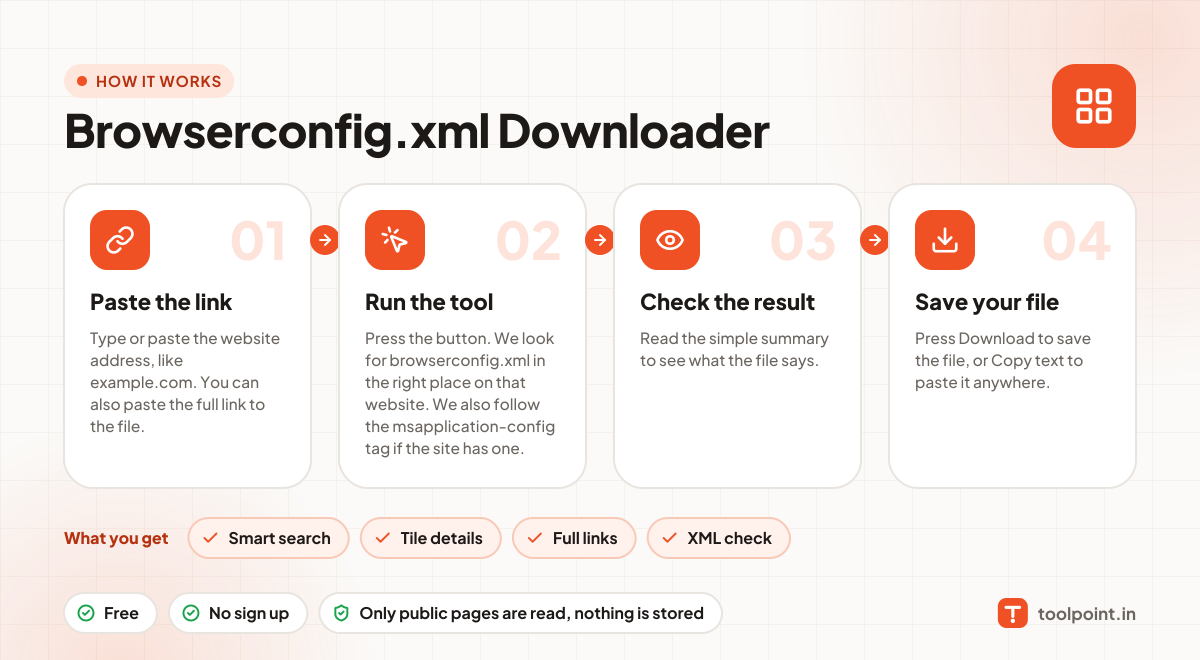
How to use it
- Type or paste the website address, like
example.com. You can also paste the full link to the file. - Press the button. We look for
browserconfig.xmlin the right place on that website. We also follow the msapplication-config tag if the site has one. - Read the simple summary to see what the file says.
- Press Download to save the file, or Copy text to paste it anywhere.
Why people like this tool
Smart search
Checks the usual place and the link set in the page head.
Tile details
See each tile image size and the tile colour.
Full links
Relative image paths are turned into full, clickable links.
XML check
We make sure the file is valid XML.