How to Control a Fan From Your Phone With an ESP32
Switch your fan on and off and change its speed from your phone with a small ESP32 board and a free web remote. No app to install.
In this post
Want to switch your fan on and off from your bed, and change its speed from your phone? You can, with a small ESP32 board and our free Web Fan Remote. You do not need to install any app. It works in your phone's browser.
What you need
- An ESP32 board (an ESP8266 also works)
- A relay module or a fan regulator module that can control a fan
- Jumper wires and a safe power supply for the board
- A fan
- A qualified electrician for the mains wiring
Safety first
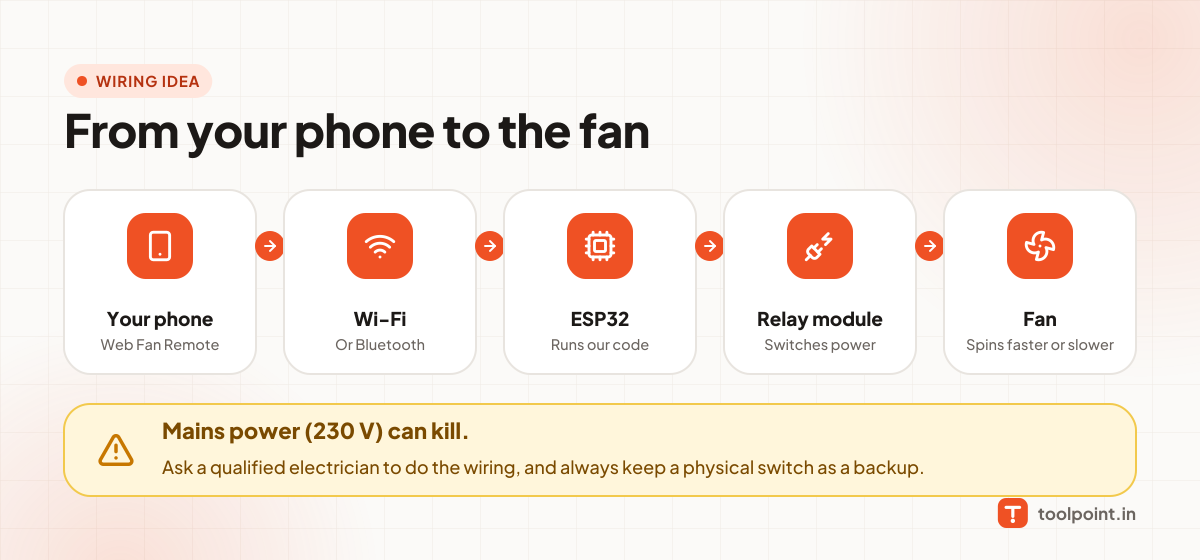
A fan runs on mains power (230 V), and mains power can kill. Please:
- Ask a qualified electrician to do any wiring that touches mains power.
- Use a proper relay module, a fuse and a closed box (enclosure).
- Keep a normal wall switch, so you can always turn the fan off by hand.
- Never use a web remote as the only way to stop a machine.
Step 1: Try the remote in demo mode
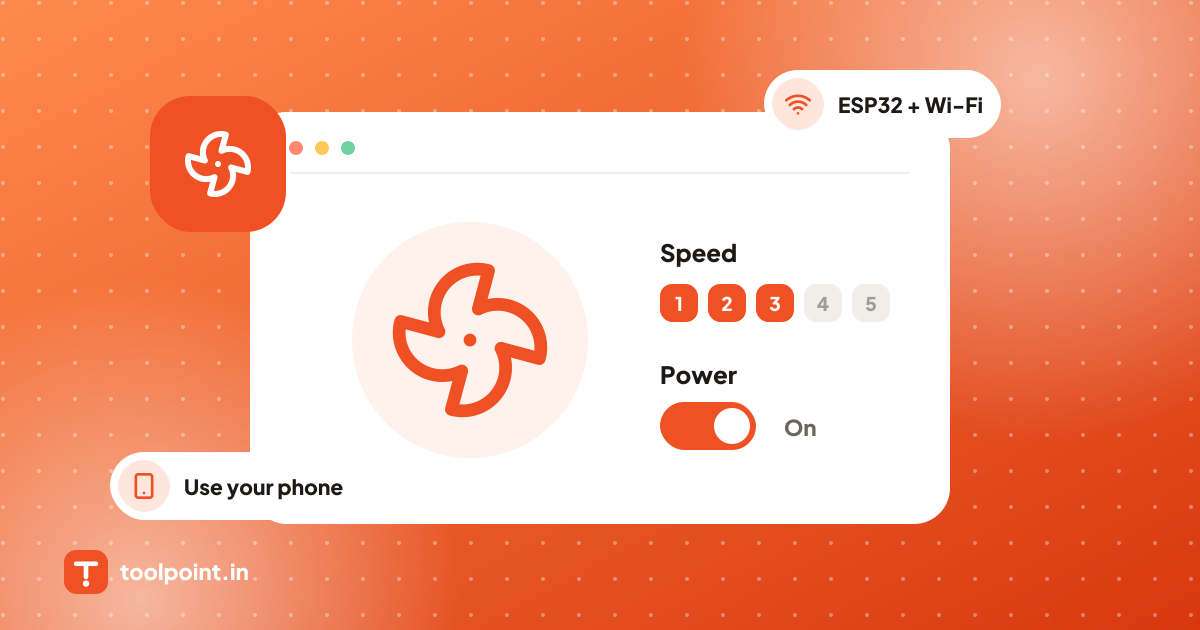
Open the Web Fan Remote. You will see a fan with a power button, five speed steps, normal, breeze and sleep modes, and an auto-off timer. Play with it. The fan in the preview spins faster when you raise the speed. Nothing is connected yet, so this is completely safe.
Step 2: Pick how to connect
Press Connect my device. You can connect your ESP32 by:
- Bluetooth
- Wi-Fi hotspot (no router needed)
- Home Wi-Fi
- USB cable
- The internet (MQTT)
Bluetooth and Wi-Fi hotspot are the easiest to start with.
Step 3: Get the code and upload it
Press Get the code for this. We write the Arduino code for the way you chose. Open it in the Arduino IDE, choose your board and upload it.
Step 4: Connect and control
Connect from the remote. Now the buttons control your real fan. If something does not work, go back to demo mode to check that the screen itself works, then check the wiring with your electrician.
Other fan remotes
Have a different kind of fan? Try the Web Exhaust Fan Remote, or the Web Temperature-Based Fan Controller, which can switch a fan on when the room gets hot.
Tools from this post
Web Fan Remote
Switch your fan on or off and change the speed from 1 to 5 from your phone. Includes breeze and sleep modes and an auto-off timer.
Open toolWeb Exhaust Fan Remote
Run a kitchen or bathroom exhaust fan from your phone, or let it turn on by itself when humidity is high after a shower.
Open toolWeb Temperature-Based Fan Controller
Make a fan that turns on when it gets hot. Watch the temperature, set your limit and let the ESP32 run the fan by itself.
Open toolKeep reading
All posts Website & SEO
How to Save Photos, Videos and Files From a Public Telegram Channel
If you are looking Telegram channels related useful tools for photos, videos, documents, audio files, GIFs and other media. and you want to...
7 min read

Working Days in October 2026 in India
October 2026 has 31 calendar days. It includes 22 weekdays, 9 weekend days, and major holidays such as Gandhi Jayanti and Dussehra.
6 min read
 Website & SEO
What Is llms.txt? How to Check Any Website's llms.txt File
llms.txt is a small Markdown file that tells AI tools what your website is about. Learn what goes inside and how to check any website in seconds.
3 min read